
Business
Battery Tips: Which apps are draining the most battery on your phone? Find out in 2 minutes and extend battery life..
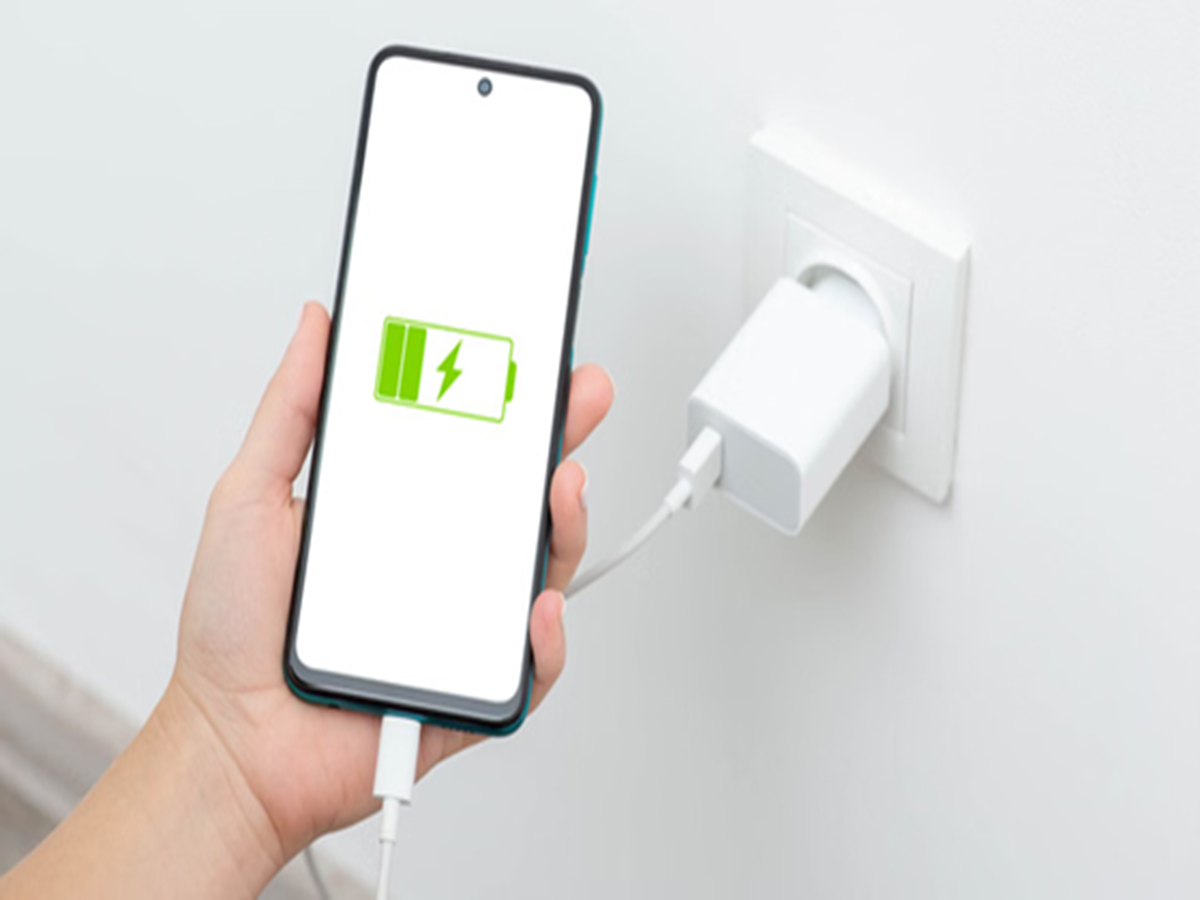
If your smartphone is draining its battery faster than before, you are not alone. Often, the culprit is apps that run continuously in the background and consume excessive power. Fortunately, both Android and iPhone offer a way to see exactly which apps are using the most battery.
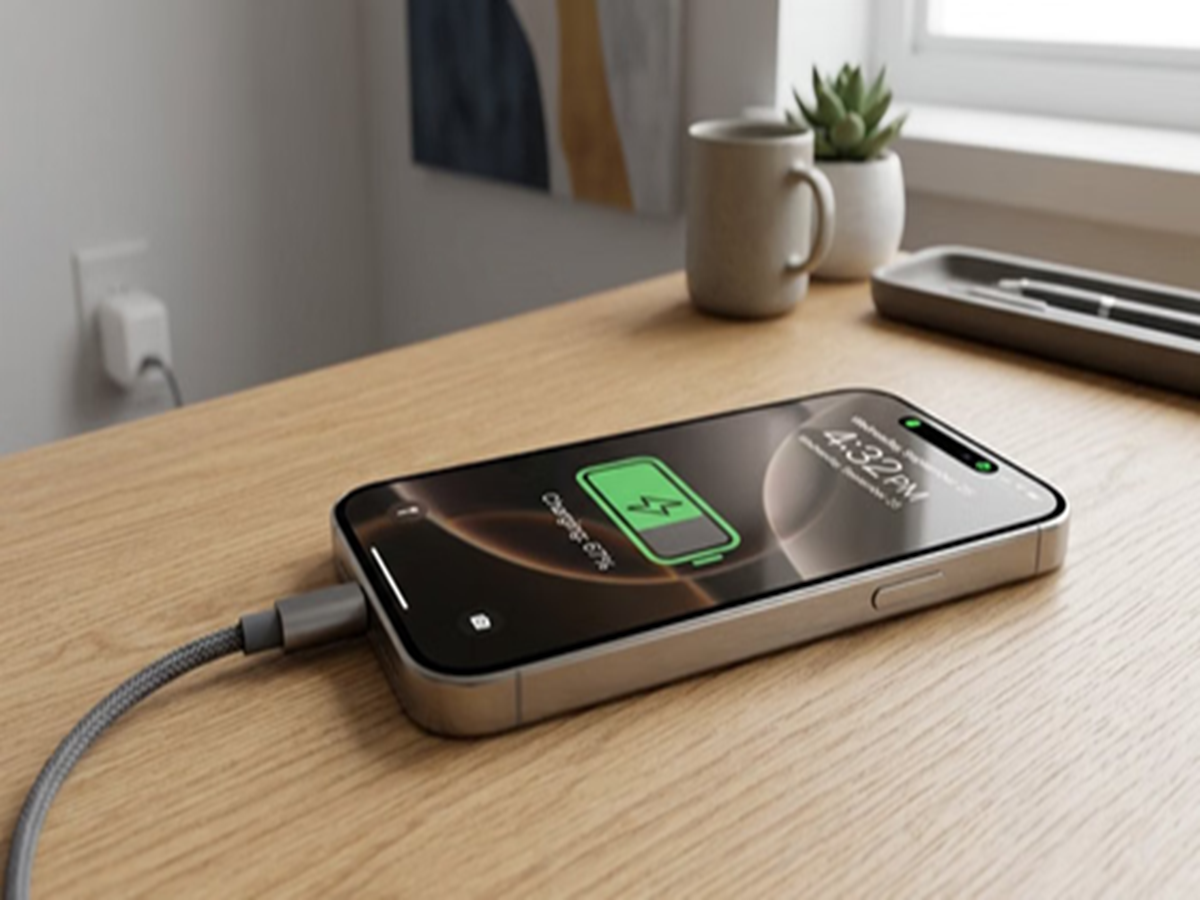
As a smart user, you should know where your phone's battery power is actually going. In this feature, let’s find out how to identify battery-draining apps on Android and iPhone and how to tackle this issue. Here are some easy ways to check usage and save battery life.
How to check on Android phones
Monitoring battery consumption on Android smartphones is very easy. You don't need any third-party apps for this; the relevant data is available right within the phone's settings.
Step 1: First, go to your phone's 'Settings'.
Step 2: Scroll down and tap on the 'Battery' or 'Battery and Device Care' option (the exact name may vary slightly depending on the phone manufacturer).
Step 3: Now, tap on 'Battery Usage'.
Step 4: You will see a list here. This list shows which apps have consumed what percentage (%) of the battery over the last 24 hours or since the last full charge.
Pro Tip: If an app you rarely use appears at the top of the list, it is likely draining your battery silently in the background.
How to check battery consumption on iPhone (iOS)?
Apple has always provided its users with accurate information regarding battery usage. On an iPhone, you can see exactly which apps are consuming battery while on-screen and which ones are doing so in the background.
Step 1: Open 'Settings' on your iPhone.
Step 2: Scroll down and tap on the 'Battery' option.
Step 3: Wait a few seconds for the data to load. Here, you can view data for the 'Last 24 Hours' or the 'Last 10 Days'.
Step 4: Further down the list, you will find the names of the apps and the percentage of battery power they have consumed.
Step 5: By clicking on 'Show Activity' right next to the apps, you can also see how much time each app has spent running in the background.
**In-depth monitoring with third-party apps**
If you are particularly concerned about your phone's battery health and consumption, you can also use some excellent third-party apps available on the Play Store.

**4 smart ways to save battery**
Turn off background refresh: Disable 'Background App Refresh' for apps that do not need to be updated immediately.
Turn off notifications: Constant notifications from social media apps (like Facebook and Instagram) frequently wake up the phone's screen, causing the battery to drain rapidly. Keep notifications turned off for non-essential apps.
Use 'Lite' versions: Instead of heavy apps, use their 'Lite' versions; they consume less storage space and battery power.
Deep Sleep: Put apps you haven't used for weeks into 'Sleep' mode on Android so they cannot use the internet or battery in the background.
PC Social Media