Meta Description: Lost your Android phone while it was on silent mode? Learn six ways to locate it using Google Find Hub, Samsung, Xiaomi, Google Nest, a smartwatch or Tile tracker.
Lost Android Phone Tips 2026: Misplacing your Android smartphone can be frustrating, especially when the device is on silent or vibration mode. Calling your number from another phone may not help because the ringtone is muted. However, several device-finding services can locate a missing smartphone and, in supported circumstances, make it ring even when silent mode is enabled.
Google Find Hub, Samsung's device-finding service and Xiaomi Cloud offer tools for locating compatible smartphones. Google Nest speakers, Wear OS smartwatches and certain Bluetooth trackers can also help find a phone misplaced nearby.
According to a Gadgets Now report, these features can be useful when a smartphone is hidden under a cushion, left in another room or forgotten at a familiar location.
However, silent-mode ringing is not guaranteed on every device. It depends on compatibility, previously enabled settings, account connections, battery power and network availability.
Here are six practical methods to try.
1. Use Google Find Hub to Make Your Android Phone Ring
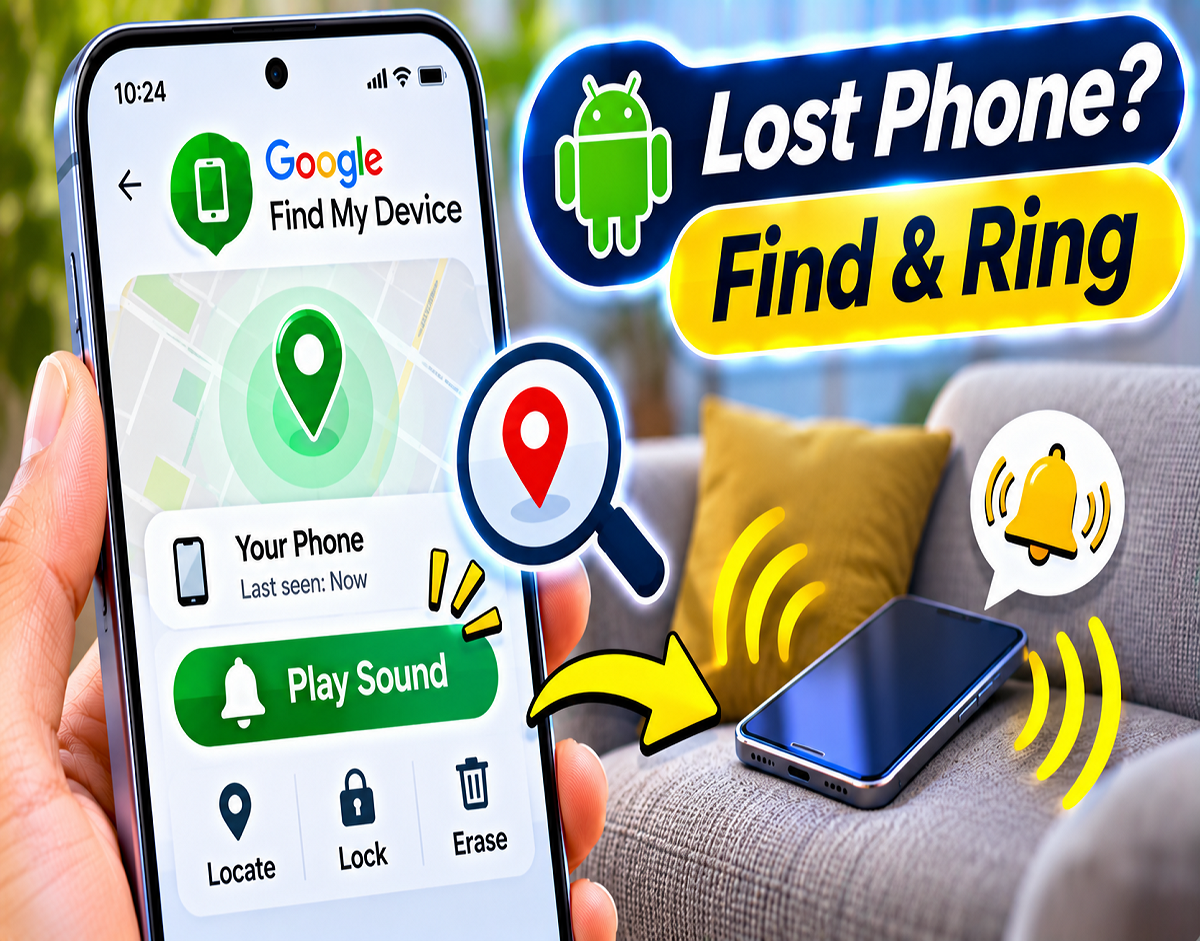
Google Find Hub, previously known as Find My Device, is one of the most accessible options for locating a missing Android smartphone.
It can display the location of eligible devices linked to your Google Account and provides a Play Sound feature.
On supported devices, Play Sound can make the phone ring at a high volume for approximately five minutes, even when silent or vibration mode is active.
How to use Google Find Hub:
- Open a browser on another phone or computer.
- Visit https://android.com/find.
- Sign in with the Google Account linked to your missing phone.
- Select the device from the available list.
- Choose Play Sound.
- Listen for the ringtone and locate the phone.
When will it work? The phone generally needs to be powered on, associated with your Google Account and able to receive the command through an available connection. Device-finding settings must also be configured appropriately.
If the phone cannot receive the ringing command, you may still be able to view its last known location or supported offline-finding information.
2. Find a Samsung Galaxy Phone Using Samsung's Finding Service
Samsung Galaxy users may have another option through Samsung's device-finding services, including SmartThings Find and supported Samsung account tools.
These services can help locate registered Galaxy devices and may provide a remote Ring option.
Steps to follow:
- Open Samsung's official device-finding service on another device.
- Sign in using the Samsung Account linked to your Galaxy phone.
- Select the missing smartphone.
- Choose the available Ring option.
- Follow the sound to find your phone.
The supplied report indicates that supported Samsung phones may ring for approximately one minute, even when silent or vibration mode is enabled.
When will it work? The Galaxy phone must support the feature, be registered with the relevant Samsung Account and meet the service's connectivity requirements. Available options vary by model and configuration.
Some compatible devices may also offer nearby-search or navigation features.
3. Locate Xiaomi, Redmi or POCO Phones Through Xiaomi Cloud
Xiaomi, Redmi and POCO users can check whether their phone supports Xiaomi Cloud's Find device service.
Depending on the device and configuration, this service may provide location tracking, sound playback and lost-device controls.
How to use Xiaomi Cloud:
- Visit https://i.mi.com on another device.
- Sign in to your Xiaomi Account.
- Open Find device.
- Select the missing smartphone.
- Tap the available Sound option.
- Listen for the phone.
When will it work? Xiaomi's Find device feature must have been enabled before the phone went missing. The phone also needs sufficient battery power and connectivity to receive a remote sound command.
On supported setups, the sound function may work despite silent mode.
4. Ask a Google Nest Speaker to Find Your Phone
If you have a compatible Google Nest speaker or smart display at home, you may be able to locate your Android phone using a voice command.
Say:
"Hey Google, find my phone."
A properly configured Google Assistant setup may identify your linked phone and trigger a ringing command.
This is particularly useful when you believe the phone is somewhere inside your home.
When will it work? The speaker and phone must be linked through the appropriate Google Account and supported device-finding configuration. Required settings, potentially including Voice Match, should be completed beforehand.
The phone generally needs to be powered on and connected to a network.
Supported setups may ring the phone even when it is muted or Do Not Disturb is active, but this behavior should not be assumed for every device.
5. Use Your Smartwatch's Find My Phone Feature
Many compatible Wear OS smartwatches provide a Find My Phone function.
This can be useful when your smartphone is somewhere nearby but you cannot remember where you placed it.
How to find your phone:
- Wake your smartwatch.
- Open Quick Settings or the app menu.
- Find Find My Phone.
- Tap the option.
- Listen for the sound from your smartphone.
When will it work? The smartwatch and phone must support the feature and maintain the necessary connection, commonly Bluetooth.
The phone must also be switched on.
Some compatible watches can make the phone ring even when its normal ringtone is muted.
This method is best suited to finding a phone within the supported connection range.
6. Use a Tile Bluetooth Tracker
Compatible Tile Bluetooth trackers may also help locate a missing smartphone.
Certain Tile devices offer a phone-finding function that can trigger a ringtone from a previously paired phone.
How to use it:
- Install and configure the Tile application on your Android phone.
- Pair a compatible Tile tracker.
- Enable the supported phone-finding function.
- Keep the tracker attached to an item such as your keys or bag.
- If the phone goes missing, press the Tile button twice on supported models.
- Listen for the phone's ringtone.
When will it work? The tracker must be compatible, properly configured and within the required Bluetooth range. The phone must be powered on and the necessary application permissions and connections must remain active.
Supported Tile setups may trigger a sound even when the phone is on silent.
Which Method Works Best? Compare All Six Options
| Method | Can It Ring a Silent Phone? | Main Requirement |
|---|---|---|
| Google Find Hub | Yes, on supported devices | Google Account, finding setup and command connectivity |
| Samsung device-finding service | Yes, when supported | Compatible Galaxy device and Samsung Account |
| Xiaomi Cloud | Yes, when supported | Find device enabled and required connectivity |
| Google Nest | Possible with supported setup | Linked Google services and compatible speaker |
| Wear OS smartwatch | Yes, on compatible devices | Supported watch and active connection |
| Tile tracker | Yes, on supported setups | Paired tracker within connection range |
Important: Silent mode does not necessarily prevent a device-finding alert from playing. However, a powered-off phone, missing permissions or unavailable connectivity can prevent the command from working.
Can You Find an Android Phone That Is Switched Off?
If a smartphone is switched off or its battery is completely depleted, it generally cannot receive a normal remote ringing command.
However, Google Find Hub or a manufacturer's device-finding service may display a previously recorded location.
Some supported Android phones can also participate in offline-finding networks.
Certain compatible Google Pixel models may remain discoverable for a limited period after powering off, depending on their hardware and settings.
These capabilities are not available on every Android smartphone.
A phone being discoverable while offline does not necessarily mean it can play a ringtone while switched off.
What Should You Do If Your Android Phone Is Stolen?
If you suspect that your smartphone has been stolen rather than misplaced, avoid relying only on the ringing feature.
Use the official device-finding service to review its available location and security options.
Where supported, remotely lock or secure the device.
Contact your telecom operator to arrange SIM blocking and report the theft to the police.
In India, the government's Sanchar Saathi service provides information about blocking lost or stolen mobile handsets through the applicable official process.
Official website: https://sancharsaathi.gov.in
Remember that a location displayed on a map may not be completely accurate. Do not confront a suspected thief based only on location information.
How to Prepare Your Phone Before It Goes Missing
Device-finding features are most useful when they have been configured in advance.
Check that your phone's supported finding service is enabled and linked to the correct account.
If you use a Samsung or Xiaomi smartphone, review the manufacturer's device-finding options as well.
Keep an appropriate screen lock active and maintain the security of your Google or manufacturer account.
If you use a smartwatch or Bluetooth tracker, test its phone-finding feature while the phone is still in your possession.
This helps confirm that the connection and permissions are working before you need them.
Conclusion
Losing an Android phone while it is on silent mode does not necessarily mean you cannot make it ring.
For many Android users, Google Find Hub is the best starting point, particularly when the phone is linked to their Google Account and can receive remote commands.
Samsung and Xiaomi users may have additional manufacturer-specific options, while Google Nest speakers, smartwatches and Tile trackers can help locate nearby devices.
The key limitation is that these services depend on supported hardware, account settings and connectivity.
If your phone is nearby and powered on, a compatible device-finding feature may make it ring even when silent mode is enabled.