
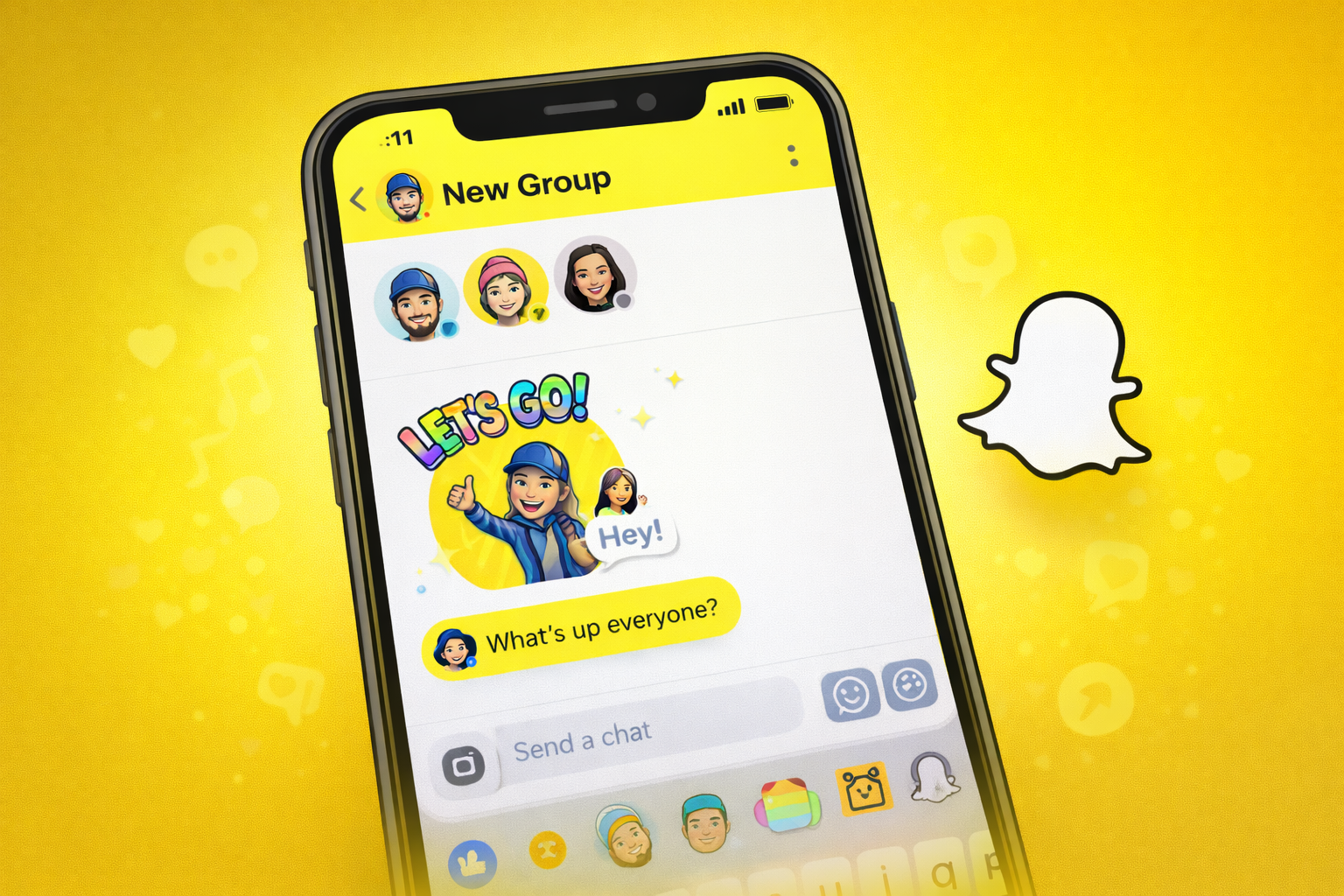
Looking to chat with multiple friends at once on Snapchat? The platform’s Group Chat feature makes it simple to connect, plan events, and share moments with up to 200 people in one conversation. Whether you’re using an Android smartphone or an iPhone, setting up a group is quick and user-friendly.
Snapchat is widely recognized for its interactive tools such as augmented reality filters, disappearing messages, Stories, and creative stickers. Beyond these popular features, Group Chats offer a practical way to stay in touch with friends in a shared space.
If you’re new to this feature or unsure how to get started, here’s a complete step-by-step guide to creating and managing Group Chats on Snapchat.
What Is Snapchat Group Chat?
Snapchat’s Group Chat allows users to create a shared messaging space where multiple friends can exchange text messages, photos, videos, stickers, and snaps. It’s ideal for coordinating plans, discussing shared interests, or simply staying connected with your social circle.
You can add up to 200 friends in a single group, making it suitable for everything from small friend circles to large communities.
However, it’s important to note one key limitation: snaps sent within a Group Chat do not count toward Snap Streaks with individual friends. If maintaining a streak matters to you, you’ll still need to send direct snaps separately.
Step-by-Step: How to Create a Group Chat on Snapchat
Follow these simple instructions to start your group conversation:
Step 1: Open the Chat Screen
Launch the Snapchat app on your smartphone. At the bottom of the screen, tap the chat icon (speech bubble symbol) to enter the Chat section.
Step 2: Start a New Chat
Once you’re in the Chat screen, tap the icon to create a new conversation. This option allows you to select multiple contacts at once.
Step 3: Select Group Members
Choose the friends you want to add from your friend list. You can include up to 200 people in one group. Take your time to ensure everyone you want is selected.
Step 4: Tap “Chat” to Create the Group
After selecting the participants, tap the “Chat” button. Your Group Chat will be created instantly, and you can begin sending messages, snaps, or media files.
How to Access an Existing Group Chat
If you want to rejoin your group conversation later:
- Go back to the Chat screen.
- Scroll through your conversations to find the group.
- Alternatively, use the Search feature by tapping the magnifying glass icon and typing the group’s name.
This makes it easy to manage multiple group conversations without confusion.
Useful Tips for Using Snapchat Group Chats
Snapchat provides several features to enhance your group messaging experience. Here are five helpful tips:
1. Snap Streak Reminder
Snaps shared in Group Chats will not maintain Snap Streaks with individual users. Send personal snaps if you want to keep streaks active.
2. Track Message Interaction
Press and hold a message within the group to see who has read, saved, or interacted with it. This helps you understand engagement levels.
3. View Snap Activity
When someone opens a snap shared in the group, their name appears below it. This makes it easier to see who has viewed your content.
4. Use Bitmoji Stickers
Sharing Bitmoji stickers adds personality to conversations. Friendmoji will appear with the last person who sent a chat in the group.
5. Mention Members Directly
To grab someone’s attention, type their display name or use “@” followed by their username. They will receive a notification, making it easier to direct messages to specific members.
Why Use Snapchat Group Chats?
Group Chats offer convenience and flexibility. Instead of sending the same message multiple times, you can share updates in one place. It’s particularly useful for:
- Planning trips or events
- Coordinating study groups
- Sharing memes and media
- Staying connected with family or friends
The feature works seamlessly across devices, ensuring smooth communication whether participants are using Android or iOS.
Creating a Group Chat on Snapchat is simple, quick, and highly effective for staying connected. With support for up to 200 members and interactive features like mentions and Bitmoji stickers, the platform makes group conversations engaging and easy to manage.
By following the steps above and keeping the tips in mind, you can make the most of Snapchat’s group messaging feature and enjoy a more connected social experience.